Enable Deep Links in PlayTera
Make any Terabox link open directly in PlayTera — no copy-pasting needed. Just tap a link and it plays instantly.
⚠️ Why Am I Only Seeing 10–12 Links Instead of 57?
PlayTera supports 57 Terabox domains for deep linking. But if you have the original Terabox app installed, it has already claimed most of those link domains. That's why you only see 10–12 links available when you try to add links in PlayTera.
To fix this, you need to either uninstall the original Terabox app or disable its deep link settings. Follow one of the two options below.
Option A: Uninstall the Original Terabox App (Recommended)
This is the easiest method. Once uninstalled, all 57 domains become available for PlayTera.
If you don't need the original Terabox app, simply uninstall it from your device. This will free up all the link domains and allow PlayTera to claim all 57 supported links.
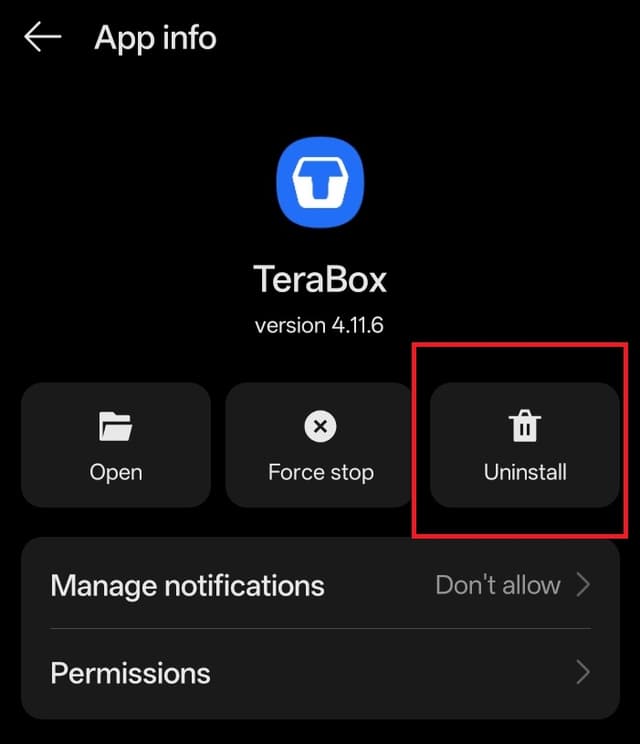
Long press the Terabox app → Tap "Uninstall"
After uninstalling, continue to Step 1 below to set up PlayTera deep links.
Option B: Keep Terabox App but Disable Its Deep Links
Want to keep the original app? No problem — just disable its link handling.
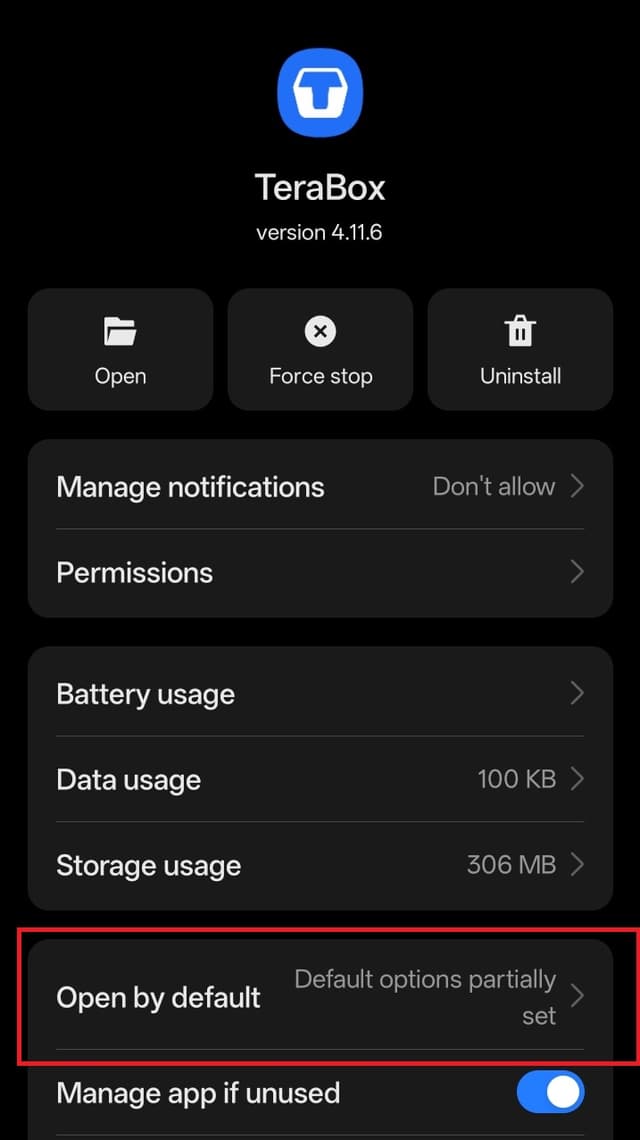
1Go to Terabox App Settings → "Open by default"
Open your phone's Settings → Apps → Terabox → Open by default.
2Select "Open in your browser"
Change the setting from "Open in this app" to "Open in your browser". This tells Android to stop sending Terabox links to the original app.
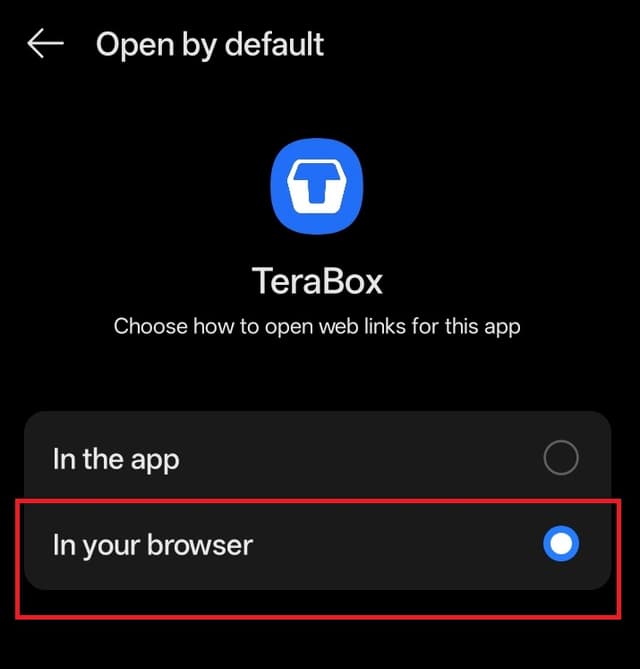
Done! Now all 57 Terabox domains will be available for PlayTera. Continue to Step 1 below.
1Open PlayTera App Settings
Go to your phone's Settings → Apps → PlayTera → Open by default.
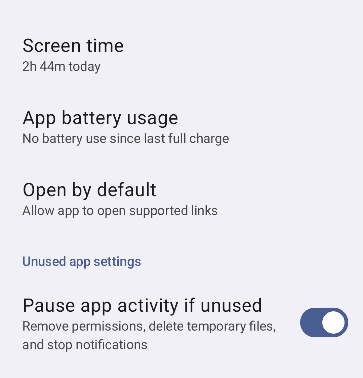
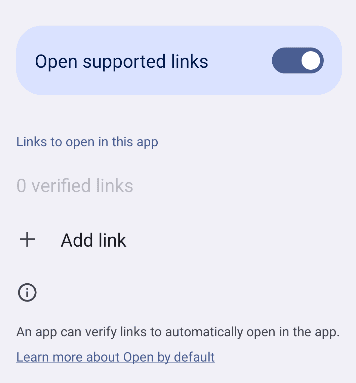
2Enable "Open supported links"
Make sure the "Open supported links" toggle is turned ON.
3Tap "Add link" or "Supported links"
You'll see the option to add verified links. Tap on "+ Add link" to open the full list of supported domains.
4Enable ALL Available Links
You should now see all 57 supported links. Select every single one by checking all the boxes, then tap "Add" to confirm.
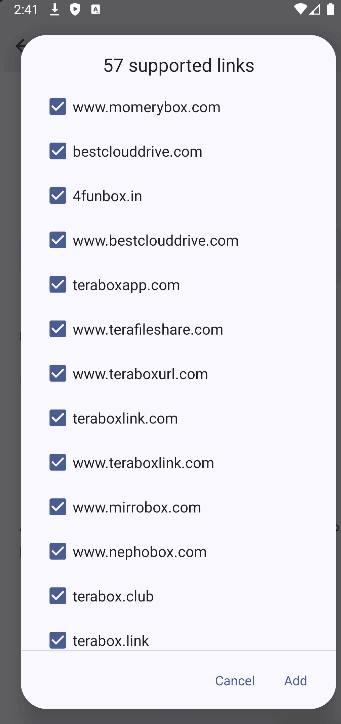
All 57 domains should be visible after removing/disabling the original Terabox app.
✅ You're All Set!
From now on, whenever you tap any Terabox link — from Telegram, WhatsApp, Chrome, or anywhere else — it will open directly in PlayTera and start playing instantly. No more copy-pasting links!
All 57 Supported Terabox Domains
PlayTera can intercept links from all of these domains:
Troubleshooting
Still seeing only 10–12 links?
The original Terabox app is still claiming those domains. Make sure you either uninstalled it or set it to "Open in your browser" as shown in Option A or Option B above.
Links still opening in browser?
After adding links, restart your phone once. Also make sure the "Open supported links" toggle is turned ON in PlayTera's settings.
Links opening in another app?
Go to that app's settings → Open by default → set to "Open in your browser" or disable supported links. Then repeat the steps above for PlayTera.